Inkscape and the Gimp are trusty tools in my daily tool box for various vector and bitmap image editing. Being open source applications, they have firm roots in the Linux world, but luckily they are also available for Windows and Mac OS X. No wonder I have them installed on my MacBook too.
The problem
On OS X, Inkscape and the Gimp are not completely native applications, but they depend on X11.app. This extra layer makes the user experience unfortunately less streamlined than with native applications. Especially the keyboard interaction of an out of the box setup can be clunky.
For example: in Inkscape on Linux, the ALT key is used for some operations (kerning) and handy shortcuts (cloning), while in OS X you need the OPTION/ALT key for entering accented and other special characters (e.g. "é", "ü", "î" or "€" on my querty keyboard). So how do we combine these features (I need both) in Inkscape on OS X? With my default/out of the box installation of Inkscape, I only had the ALT key as a shortcut key like in Linux. Entering accented characters was not possible unfortunately. Really annoying because I really need to use those from time to time in my native language Dutch.
Another problem is how to do copy/paste between native OS X application and Inkscape. For example, you're designing something like a flyer in Inkscape and you need to copy over some text from an email or text document. Typing everything over manually feels so medieval, doesn't it? Apart from the interaction problem, there is also the usability problem that X11.app application typically use CONTROL-C and CONTROL-V for copy/paste, while the native OS X applications use COMMAND-C and COMMAND-V.
The solution (kind of)
A real solution for this kind of problems would be native applications (and some nice people are working on that), but as long we're stuck with an X11.app layer in between, I'm afraid we'll have to cry ourselves asleep with some workarounds.
A well put google query can get you somewhere. And that's what I've done too. You can find many clues for example here:
- Inkscape Bug #167290: OSX: ALT stolen by shortcuts, cannot type special characters
- Mac OS X specific issues on the Inkscape wiki
- "HOW-TO: Get the ALT key to function properly under Mac OS X" on inkscapeforum.com
My setup tweaks
Mainly for my own reference, I keep a checklist to document the various tweaks I did to my setup.
-
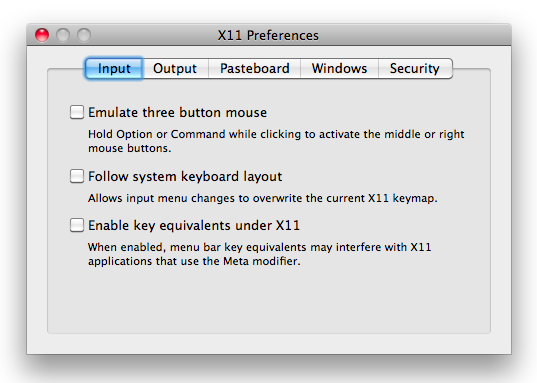
On most sources I found, people suggested to disable the options "Emulate three button mouse", "Follow system keyboard layout" and "Enable key equivalents under X11" on the "Input" tab of the X11.app preferences. I'm not completely sure of the precise meaning of these options, but it appears to be a good idea to keep them disabled.
-
The ALT key conflict can be fixed by exploiting the fact that there are two OPTION/ALT keys: a left and a right one. This can be done by creating (or editing if you already have one) a X11 keymap modification file
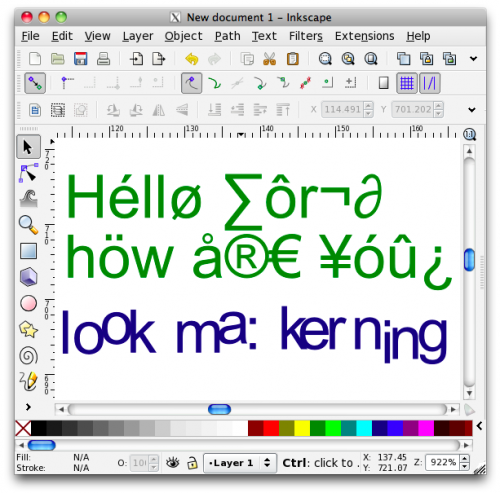
.xmodmapin your personal home directory. Create or edit this file.xmodmapand add the following (lines beginning with "!" are comments):! Change the left OPTION/ALT key (keycode 66) to be Alt ! and leave the right OPTION/ALT key (keycode 69) untouched ! as Mode_switch for OS X style entering of accents. keycode 66 = Alt_LAfter restarting X11.app (and Inkscape), you should be able to do both font kerning or cloning (with the left OPTION/ALT key) and entering accented characters with help of the right OPTION/ALT key.
-
Switching the CONTROL and COMMAND key, so you can do copy/paste with COMMAND-C/COMMAND-V can also be done with some tweaks in your
.xmodmapfile:! Switch meta and control: ! Assign the Meta_L event to the (right) CONTROL key (keycode 67), ! assign the Control_L and Control_R events to the COMMAND keys ! (keycodes 63 and 71). keycode 67 = Meta_L keycode 63 = Control_L keycode 71 = Control_R ! Redefine the related modifiers keys, because we have now ! only one Meta key event and two Control key events instead of one. clear mod2 clear control add mod2 = Meta_L add control = Control_L Control_RAgain, a restart of X11.app is required for these changes to take effect.
-
Enabling "syncing" between the OS X pasteboard and the X11 clipboard is possible on the "Pasteboard" tab of the X11.app preferences:
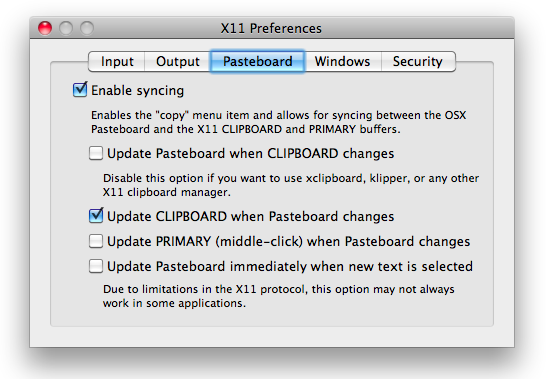
Note that I only enabled the option "Update CLIPBOARD when Pasteboard changes", which means that I can only copy text from OS X applications to Inkscape. If you enable "Update Pasteboard when CLIPBOARD changes" too, you can also copy text from Inkscape to OS X applications, but then copy/pasting within Inkscape will stop working . Because I almost never need to copy from Inkscape to OS X and need copy/paste within Inkscape a lot, it was a no-brainer to keep this option disabled. Moreover, you can always temporarily enable the option without the need to restart Inskscape or X11. Handy.